Multifactor Authentication
MFA Instructions
Oklahoma City Community College works diligently to create a campus where students, faculty, and staff feel safe on campus and utilizing our technology resources. As use of information technology has grown, so has the risk of having personal information compromised. Cybersecurity experts acknowledge that the best method to secure your information and accounts is to utilize multifactor authentication, commonly referred to as MFA.
Multifactor authentication is an authentication method that requires the user to provide two or more verification factors to gain access to a resource. Instead of just asking for a username and password, MFA requires one or more additional verification factors, which decreases the likelihood of a successful cyberattack.
OCCC is requiring all students, faculty, and staff to utilize MFA when accessing your account or OCCC resources. Please review the information on this site to configure or change your MFA account.
If you have general questions or issues with enrolling in MFA, you may contact the MFA hotline at (405) 686-7777 or email.
Please note: You need to set up text messaging as your primary authentication method. You are NOT required to install the authenticator app on your phone to complete the MFA setup but it is recommended to have both text and authenticator app set up.
To begin setup, visit this page.
Thank you for taking this step to protect your information.
Please log in to https://aka.ms/mfasetup with your OCCC email to begin setup.
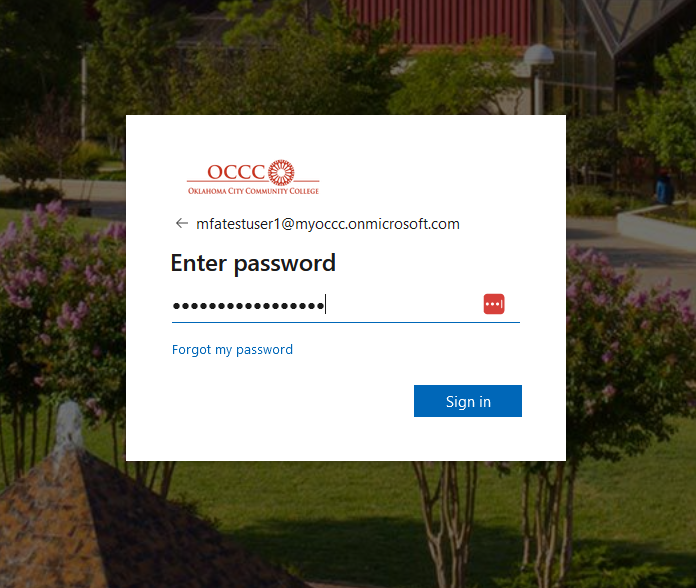
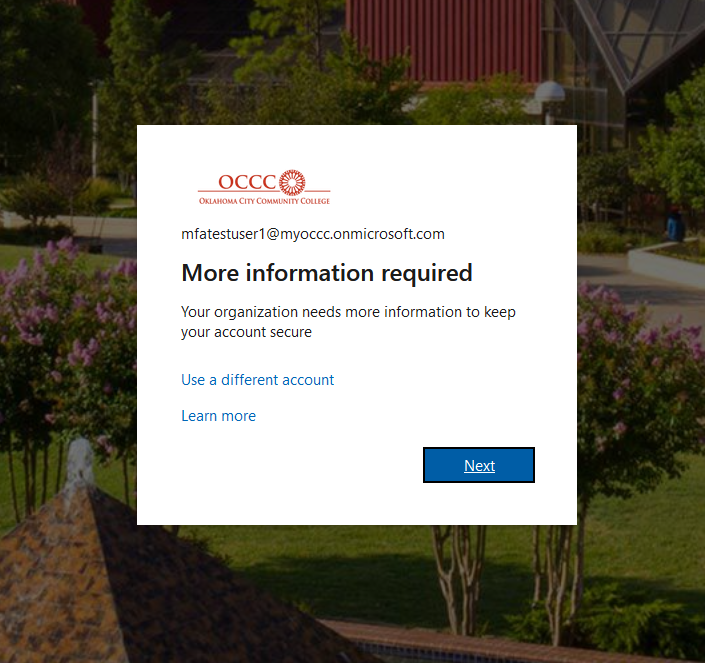
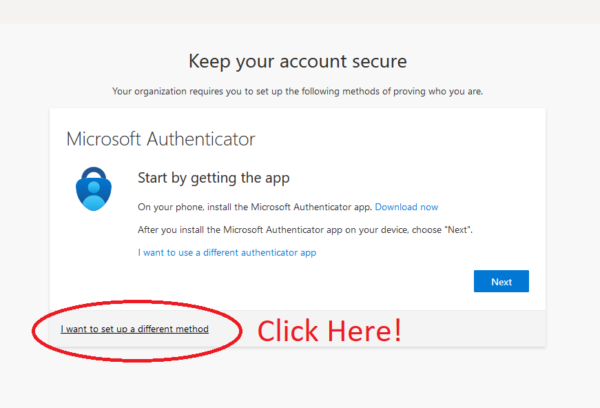
Choose “I want to set up a different method”
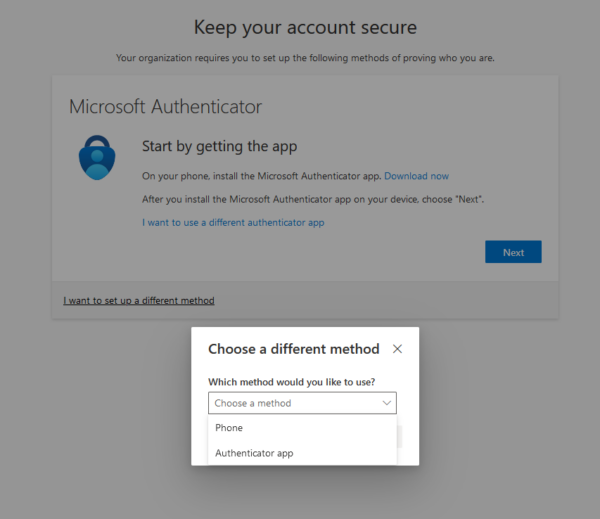
Choose “Phone” in the drop-down menu. Hit “Next” to proceed
Enter the 10 digit phone number. Hit “Next” to proceed
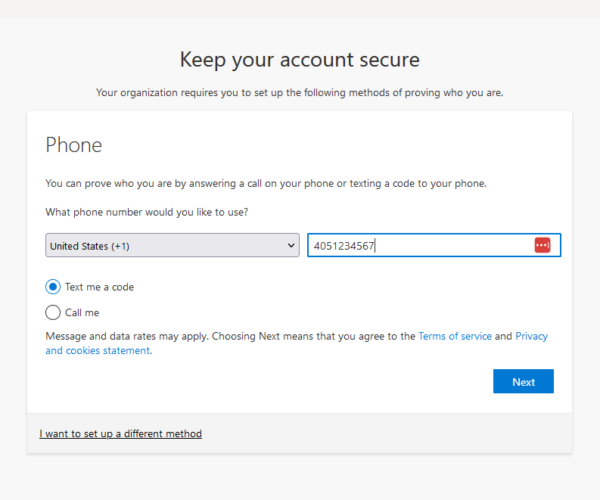
A code will be texted. Enter the code. Hit “Next to proceed
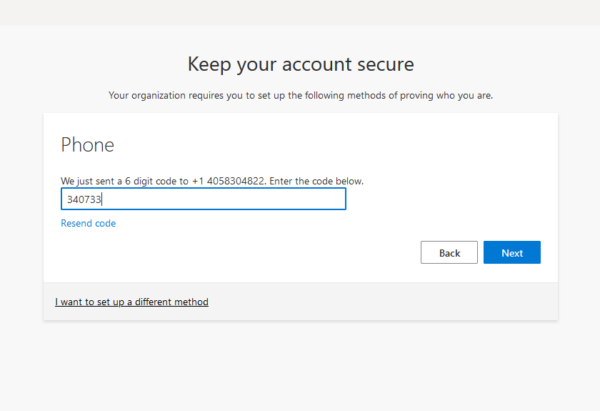
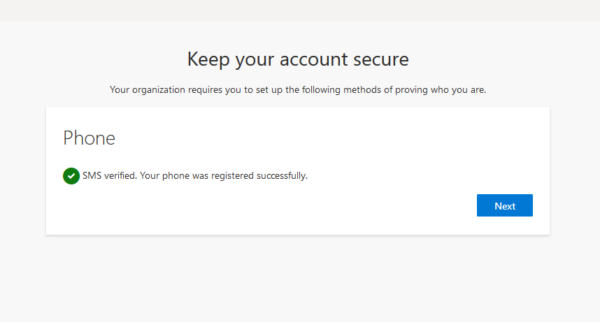
Hit “Next” & “Done” to proceed through the next two windows
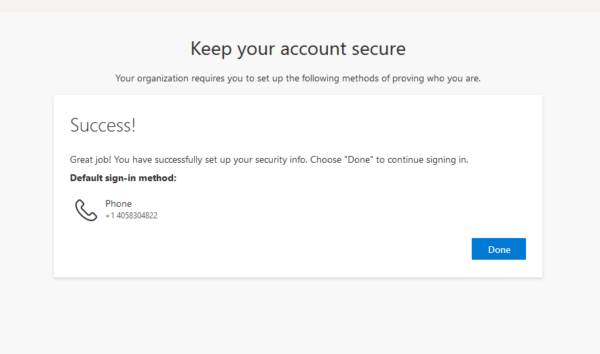
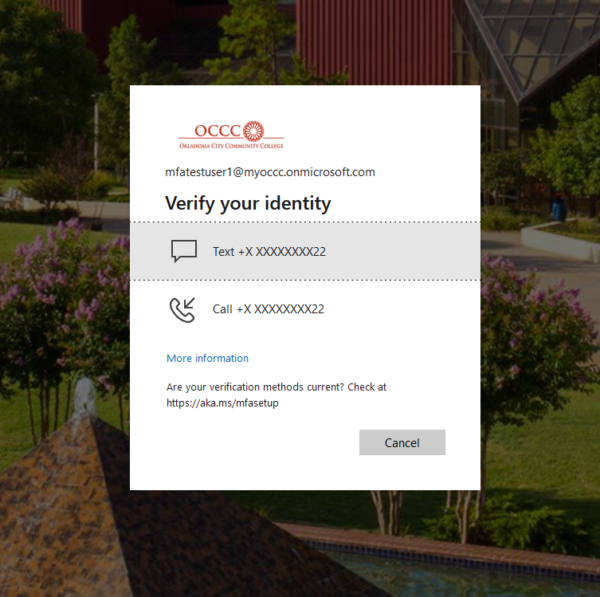
You will be redirected to your “My Sign Ins” webpage, where you will be able to add additional methods of verification if needed. This webpage requires MFA to sign in. You will be asked to “Verify Your Identity” by receiving a texted code again. Choose “Text +X XXX”.
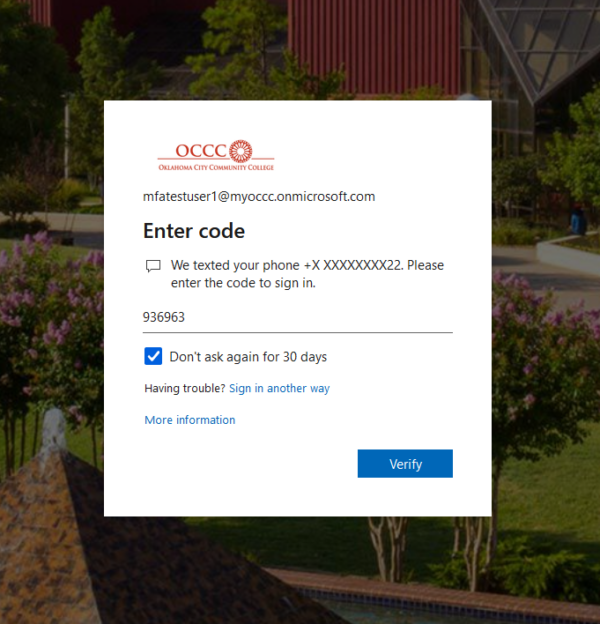
Enter the code received. Check “Don’t ask again for 30 days.” Hit “Verify to Proceed.
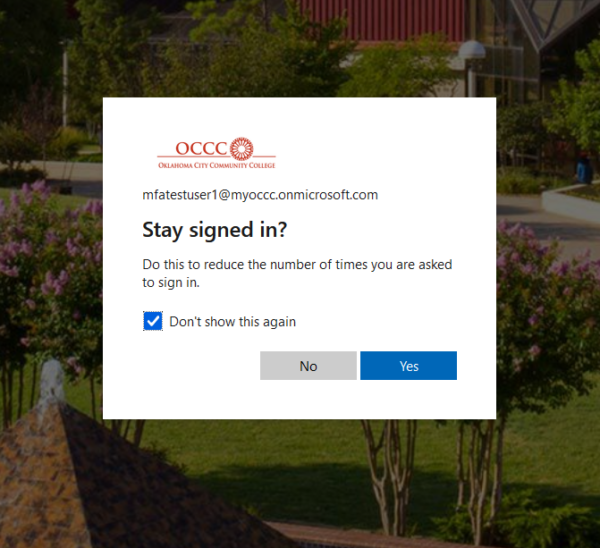
Check “Don’t show this again.” Hit “Yes" to proceed.
Hit “+ Add sign in method” if you want to add an optional MFA method like an authenticator app or second phone. Close out of this window if an additional MFA method is not needed.
Set up for MFA is complete!
Please note: You need to set up text messaging as your primary authentication method. You are NOT required to install the authenticator app on your phone to complete the MFA setup but it is recommended to have both text and Authenticator app set up.
- On your Android device, go to Google Play to download and install the Authenticator app.
- On your Apple iOS device, go to the App Store to download and install the Authenticator app
Please log in to https://aka.ms/mfasetup with your OCCC email to begin setup.
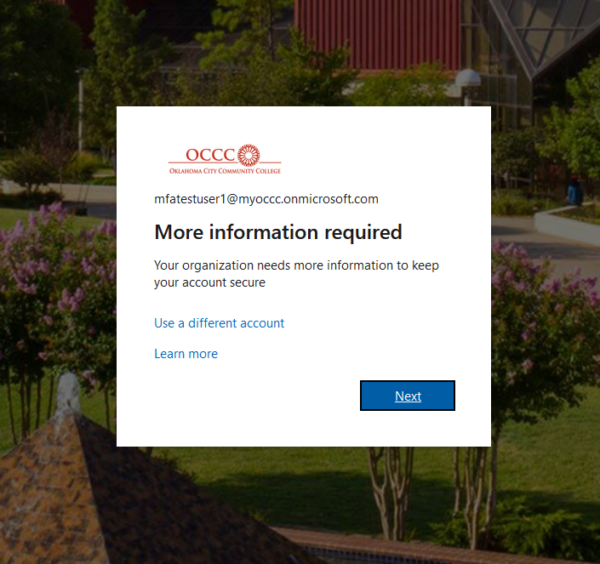
Choose “Next” to use the Microsoft Authenticator app, or Choose “I want to use a different authenticator app” to use another authentication app.
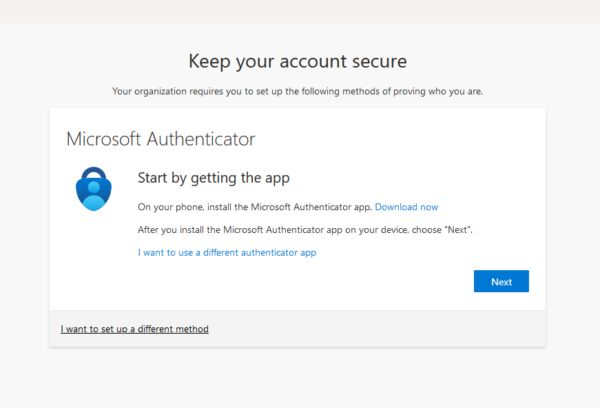
Choose “Next”
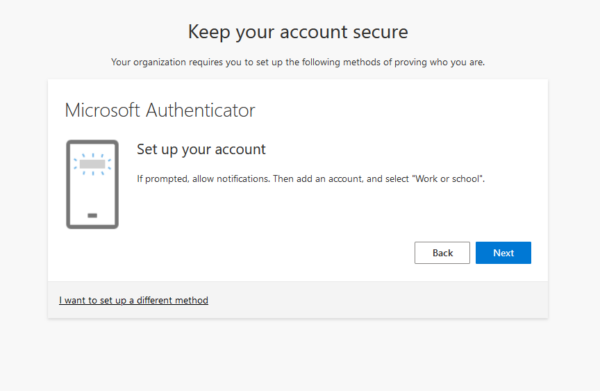
Scan the QR code with your phone using the set up method for your authenticator app.
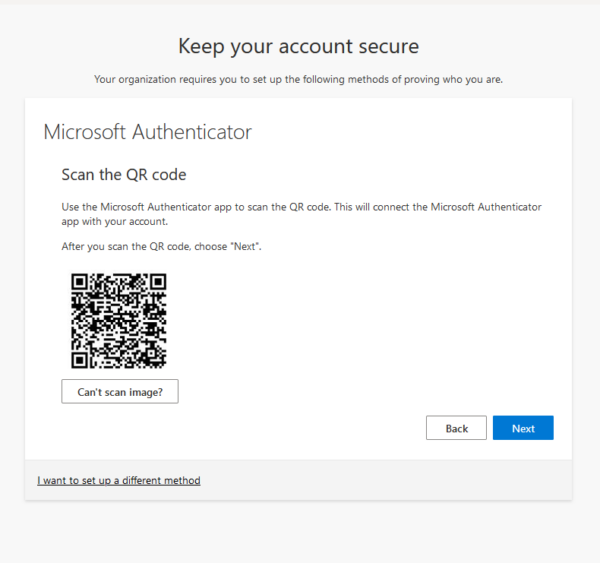
Choose “Done”
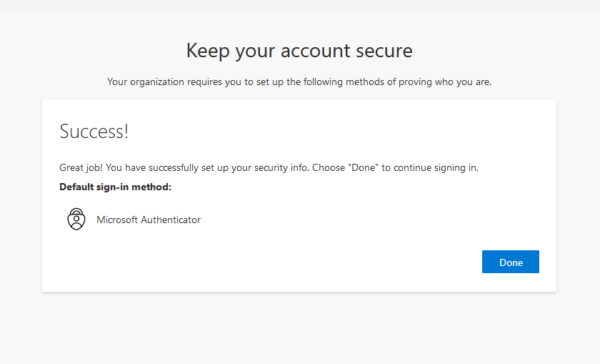
You will be redirected to your “My Sign Ins” webpage where you will be able to add additional methods of verification if needed. Hit “+ Add sign in method” if you want to add an optional MFA method like Close out of this window if an additional MFA method is not needed.
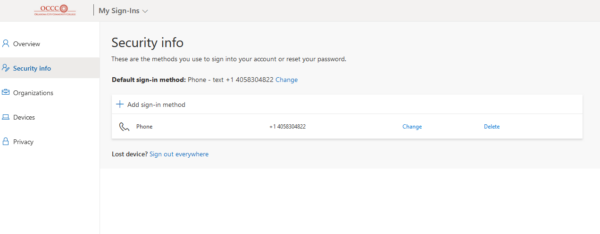
Set up for MFA is complete!
When setting up your account for multifactor authentication, you will have the option to utilize several forms of authentication. OCCC recommends that all users provide information for all of the following methods you have access to:
- Authenticator app for smartphone or tablet only — Either of these are recommended
(you only need one)
- Microsoft Authenticator — available on Google Play store or Apple App Store
- Google Authenticator — available on Google Play store or Apple App Store
- Phone – Enter your mobile phone number and select a method below
- Phone call
- Text message containing a code
- Alternate phone – Enter an alternate phone number where you can receive a verification call
Once you have configured your Multifactor Authentication (MFA) account, you are ready to begin accessing resources on campus or your OCCC accounts such as email or Moodle.
When you attempt to login, you may be prompted with a command such as shown here.
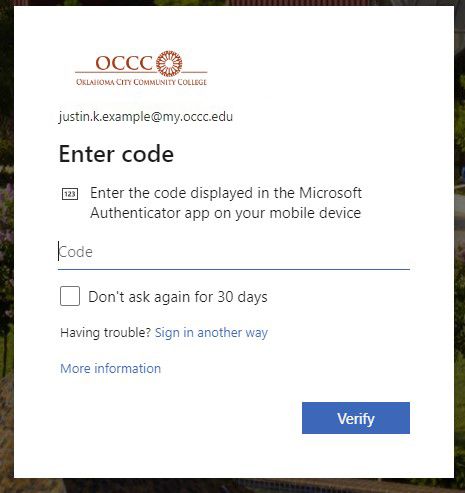
In this case it is requesting the code in the Authenticator app on your mobile device.
If you are not logging in with the displayed method select Sign in another way and follow the prompts
You can also select the check box Don’t ask again for 30 days to have your credentials remembered for the next 30 days.
When you have provided the required information, you then select Verify and are allowed to access what you are logging into.
Need Help? Contact Us.
Information Technology Services
Help Desk (FreshService)
(405) 682-7777, ext. 7777
Hours
Monday-Thursday: 7:30 a.m.-6 p.m.
Friday: 7:30 a.m.-5 p.m.